Survey Forms
Publishing forms
- Form States: The application distinguishes between two states of survey forms: published and unpublished (draft).
- Refreshing Forms List: To ensure users have access to the latest survey forms, the app includes a feature to refresh the forms list. Users can do this by swipe-pulling the survey's list page down or pressing the Refresh button on the app's home page. This action retrieves both published and draft forms from the server.
- Draft Labels: Draft forms are easily identifiable within the app by an orange "Draft" label. This visual cue prevents confusion and helps users differentiate between forms that are ready for use in the field and those still in the development or review stage.
- Survey Upload Restrictions: To maintain data integrity and prevent premature data collection, draft forms are restricted from uploading survey data. This ensures that only fully finalized surveys are used for data collection.
Testing new forms
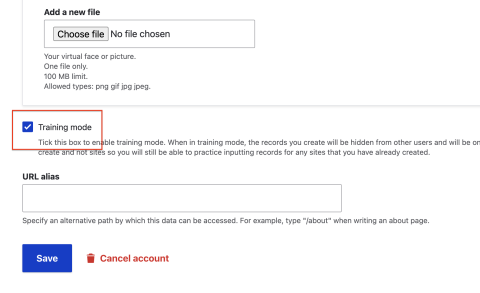
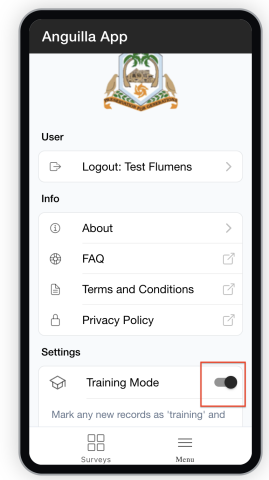
- Introduction of Training Mode: The application supports a "Training" mode, which can be activated both on the mobile app (via the Menu page) and on the website (through the user accounts page). This mode is designed for testing and validating new surveys without affecting live data.
- Training Record Submission: Users are encouraged to create and upload a training record from the app. This step allows for the practical testing of the survey form in a controlled environment, mimicking actual data collection without the consequences of errors.
- Visual Indicators of Training Mode: Within the app, training records are marked with a gray banner and the word "Training" at the top of the survey page. This visual differentiation helps users remain aware that they are in a testing environment and prevents the accidental collection of test data as real data.
- Switching Back to Regular Mode: After thoroughly testing the new survey and confirming that all data is captured correctly, it is crucial to switch the app and website back to regular mode. This transition marks the end of the testing phase and prepares the system for actual field data collection.
Managing Form Updates
- Form Modification: Survey forms hosted on the website can be updated to incorporate new changes or corrections.
- Version Control: To manage changes effectively, the application implements versioning for survey forms. and so each update creates a new version of the form.
- Visibility of Changes: Once an updated form is published, the changes are reflected in the app under the existing survey names. In other words, updating an existing form will not create a new survey entry in the app, even if there are two versions of the form behind the scene.
Impact on Existing Records
- Data Consistency: Records added to the app before the update will continue to use the version of the form that was current at the time of their addition.
- Transition to New Form Versions: New records created after the form update will automatically use the latest version of the form.
- Uploading Pending Records: Before implementing changes to an existing survey form, it is highly recommended to upload any pending records from mobile devices. This precautionary step ensures that all data collected under the previous version of the form is safely stored and processed before transitioning to the updated form.
Safari Browser Location Permissions on iOS Devices
To ensure the app functions correctly with geolocation features, it's essential to enable location permissions for Safari. Here's a quick guide to adjusting these settings in two different areas of your iOS device settings:
Location Permissions in Privacy & Security
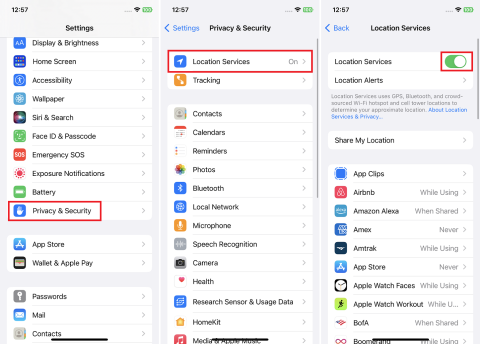
- Navigate to Settings: Open the 'Settings' app from your iPhone's home screen.
- Access Privacy & Security: Scroll to find and select 'Privacy & Security'.
- Enable Location Services: Ensure that "Location Services" is turned on at the top of this section.
- Adjust Safari Websites Settings: Scroll to locate "Safari Websites." Under this, find and set the "ALLOW LOCATION ACCESS" to 'While Using the App'.
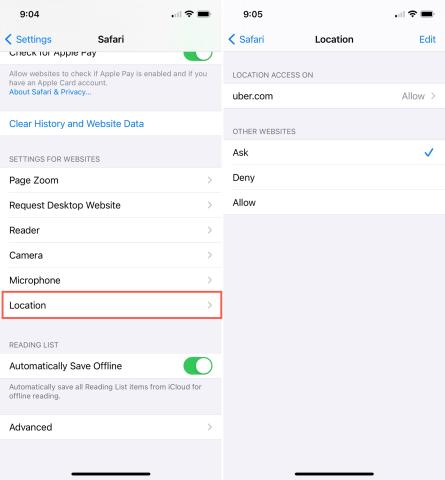
Location Permissions via Safari Settings
- Open Settings: Start from the home screen and go to 'Settings'.
- Find Safari Settings: Look for the 'Safari' option and select it.
- Set Location Preference: In the Safari settings, find the "Location" item. This should be set to "Ask" or "Allow".
Updating to New App Versions
The app is designed to streamline updates by automatically downloading new versions in the background so that you can always access the latest features and improvements without interruption. However, to transition to the new version after an update has been downloaded, you must reopen the app.
If you're using a desktop browser, simply refresh the page to start using the new version of the app. For mobile device users, the process involves a few more steps:
- Close the App: Begin by swiping the app off your active (background) apps list. This effectively closes the app and prepares your device to launch the updated version. For more detailed instructions on closing apps on your specific device, check this guide for iOS devices and this one for Android devices.
- Reopen the App: Open the app again as you normally would. This action initiates the updated version of the app, complete with any new features or bug fixes that have been implemented.
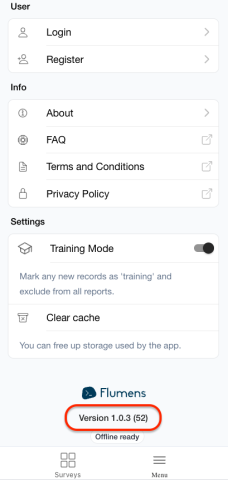
You can find your current app version at the bottom of the Menu page.